Build the schedule
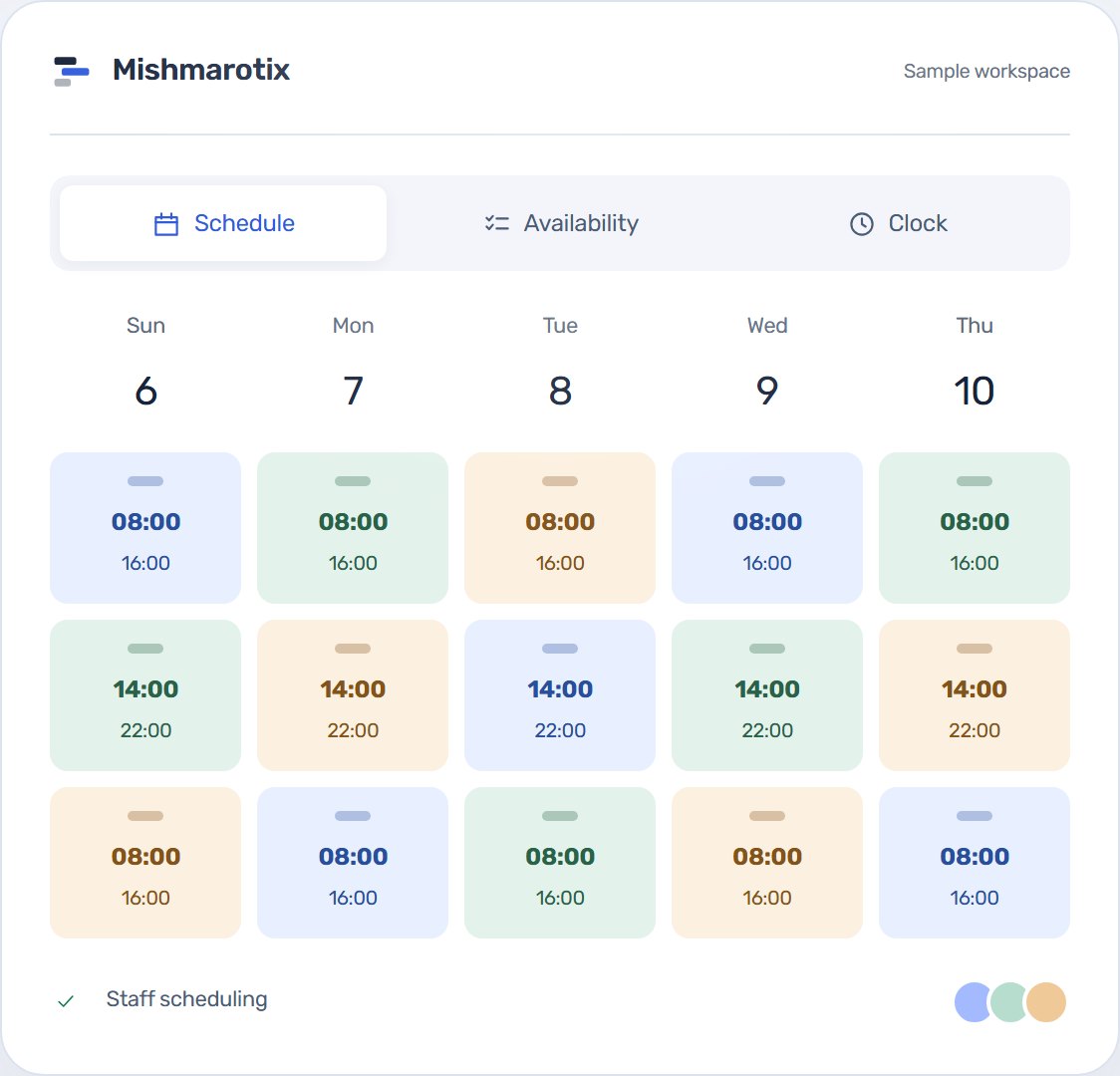
Schedules are built a week at a time. Create a shift with a date, start and end time, site and role, then assign someone to it. Each shift can carry a note and a task list, be marked as on-call, or be locked so it cannot be changed by accident.
While it is a draft only managers can see it. The team sees the schedule when it is published, so you can build, move things and change your mind without every adjustment reaching somebody as a notification. Starting from a spreadsheet? Download the free rota template for Excel, or read how to build a shift rota in seven steps.
Availability and time off
Employees submit availability for the week: which days and which parts of the day they can work, a free-text note, and the most shifts they are asking to work that week.
Time off is requested separately, with a type, a date range and a reason. A manager approves or declines and can attach a note, and the request keeps who decided and when.
What is checked before you publish
As you assign, the schedule is checked against what is already known and warns about an overlap with another shift, too little rest between shifts, someone who said they were unavailable, leave that has already been approved, a missing qualification the role requires, and going over the weekly hours cap. Night shifts are flagged separately.
The warnings do not block the manager. They are shown so the decision is made knowingly, rather than discovered later on a payslip.
Automatic scheduling
With the Smart auto-fill package, open shifts are filled from the availability staff submitted, hours are balanced between people and rest between shifts is respected. What it builds stays a draft: check it, change it and publish when you are ready. How automatic scheduling works.
Qualifications and expiry
Each employee can hold qualifications with an expiry date, and a role can require one. Qualifications about to lapse are flagged in advance, so it is not discovered on the day somebody needs to be scheduled.
Changes after publishing
A schedule is published, and then life happens. An employee can ask to swap with a colleague, or claim a shift nobody took. Every request goes for approval according to permissions, and keeps who asked, from whom to whom, the reason, who decided and when.
So “who approved this?” always has an answer, including two months later.
Sites, departments and roles
The business is described the way it is actually arranged: sites, the departments inside them, and roles. An employee can belong to more than one site and hold more than one role, and the schedule is built per department.
Who it is for
Shift teams in restaurants, support desks, security, clinics, warehouses, retail, manufacturing and driving schools. Configure departments, roles and shifts to match your business, so the system fits the structure you already have rather than asking it to change. Each trade has its own page, such as scheduling for security companies, rotas for restaurants and shifts for warehouses.
Publishing, and who hears about it
When the rota is ready you publish it and choose whom to tell: the people on shift that week, the whole team, or nobody. Each employee decides how they hear about changes — in the app, as a phone notification or by email — and every message is written in the language they chose.
Shifts in the employee's calendar
An employee can add a shift to the phone's calendar, download a calendar file, or create a link that adds all their shifts to Google, Apple or Outlook calendar and updates by itself when the rota changes.
No starting every week from scratch
Copying last week creates the same shifts in the new week, added to whatever is already there rather than replacing it.
A shift left open can be shared in a WhatsApp message, and whoever wants it asks for it through the link. When the manager approves one request, the other requests for that shift are declined automatically.
Export and print
The rota can be exported to Excel or printed and pinned up, for anyone who still wants it on the staff-room wall too.
No. It opens in the phone's browser and can be added to the home screen like an app.
No. A draft is visible to managers only; the team sees the rota after it is published.
Yes, with the multi-site package, bought per site, which also lets you lend staff between sites.
Hebrew, Arabic, Russian and English. Each employee chooses their own, and the notifications they receive are written in it too.